| How-to: Huawei Ascend Y511: 4 Easy Methods of Transferring Contacts from an iPhone Posted: 10 Jan 2014 05:46 AM PST Transferring contacts from one phone to another might seem like a tedious task, especially if one phone runs on iOS, while the other on Android. However, using one of the methods described below, you can easily transfer your contacts from your iPhone to the Huawei Ascend Y511. Each method has its own advantages, so pick the one that best suits your needs. Using iTunes to Transfer Contacts from an iPhone: iTunes can be used to transfer contacts from an iPhone to the Ascend Y511. If you don't have iTunes installed on your computer, visit the official Apple website and download the client. - Launch iTunes on your computer
- Establish a connection between your iPhone and your computer using the proprietary USB cable
- The iPhone should now appear in iTunes. Click on it to view its summary page
- Click the "Info" tab
- Mark the check box associated with "Sync Contacts With", and from the drop-down menu select "Google Contacts"
- Enter your Google account's log in credentials if you haven't done so before. Alternatively, you can click "Configure" in order to select a previously set Google account
- Click "Apply". Your contacts will now be synced with your Google account
- On your Ascend Y511, register the same Google account if necessary. To do so, tap "Settings" > "Accounts"
- Allow the Google account to sync contacts with your Android device
Using iCloud to Transfer Contacts From an iPhone: The iCloud service can be used to transfer your iPhone contacts, provided that you've previously used it on your iOS device. - On your computer, use the Internet browser to visit www.icloud.com
- Sign in with your iCloud account
- Go to the "Contacts" section
- From the list of contacts, select the ones that you wish to export
- Click the icon depicting a cog wheel. It's located in the lower-left side of the screen
- Select "Export vCard" to download a VCF file containing the contacts, on your computer
- Import the VCF file to Google Contacts. Alternatively, skip this step and follow the next one instead:
- Connect your Huawei Ascend Y511 to your computer via USB, and copy the VCF file to your phone's "sdcard" directory. Then, open the "Contacts" application, tap "menu" > select "Import / Export" > "SD Card"
Using the My Contacts Backup Application to Transfer iPhone Contacts: My Contacts Backup is an application that allows you to transfer contacts from an iPhone without using a computer. - On your iPhone, go to the App Store and download the "My Contacts Backup" application
- Launch the app and then tap "Backup". This will create a VCF file containing your contacts
- Tap "Email" once the backup is complete, in order to create a new email containing the VCF file as an attachment
- Send the email to your own Gmail address
- On your Huawei Ascend Y511, open the email containing the attachment, and download the VCF file to import the contacts to your device
Using "Bump" to Transfer Contacts From an iPhone: Bump is a very useful application that allows you to transfer your contacts from an iPhone to your Ascend Y511, without the need of a computer. The application makes use of cloud computing, so you'll need to have an active Internet connection on both devices. - On your iPhone, visit the App Store and download "Bump"
- Install the same application on your Ascend Y511, by visiting the Play Store
- Open the app on both smartphones and allow permissions when prompted to do so
- On the iPhone, swipe right until you see the contacts section
- In the list of contacts, select the ones that you wish to share with your Ascend
- Once the label "Bump now!" appears in the top-right corner, you can gently bump your two smartphones together
- If done right, you will see a "Connect" button on both smartphones. Tap it to initiate the transfer contact process. A copy of your iPhone contacts will be transferred over to your Huawei Ascend Y511
 |
| How-to: Oppo N1: Tips & Tricks for Transferring Contacts from an iPhone Posted: 10 Jan 2014 04:37 AM PST The Oppo N1 is a very unique device, as it features CM 11 out of the box, delivers a unique camera that rotates back-to-front, and it also comes with a touch-sensitive back panel. In other words, the Oppo N1 is a very interesting Android smartphone, and if you happen to have switched from an iPhone to the N1, then you already know this. You might also wonder how you can easily transfer your contacts from the iPhone over to the Oppo N1, and if that's the case, then here you will find four easy methods of doing so. Using iTunes to Transfer Contacts from an iPhone: iTunes is more than just a music player, as it also allows you to backup and transfer / manage data from your iPhone. Using iTunes, you can share your iPhone contacts with your Oppo N1 - If necessary, visit the official Apple website, download the iTunes client and install it
- Launch iTunes on your computer
- Connect your iPhone to your PC using the proprietary USB cable
- Once connected, the iPhone will appear in iTunes. Click on it to access the handset's summary page
- Go to the "Info" tab and mark the "Sync Contacts With" check box
- Select "Google Contacts" from the drop-down menu
- Enter your Google account login credentials, in case you haven't done so before. Otherwise, you can click "Configure" and select a previously added Google account
- Click "Apply" and allow iTunes to sync your iPhone contacts with your Google account
- On your Oppo N1, register the same account, if you haven't done so already. To add a new account, go to "Settings" > "Accounts"
- Allow Google to sync the contacts with your Android handset
Using iCloud to Transfer Contacts from an iPhone: Assuming that you've used iCloud on your iPhone before, then your contacts should've already been backed up onto your iCloud account. You can export them to your Oppo N1 using the same service - Use your computer's Internet browser to access www.icloud.com
- Log in with your iCloud account
- Click "Contacts" and select the desired ones from the list
- Now click the icon depicting a cog wheel, located at the bottom-left corner
- Select "Export vCard". This will create a VCF file containing your previously selected contacts. The file will be downloaded on your computer
- Import the VCF file to "Google Contacts". Alternatively, connect your Oppo N1 to your computer via USB, copy the VCF file to your "sdcard" directory, open the contacts application and select to import contacts from the external storage
Using "My Contacts Backup" to Transfer Contacts from an iPhone: My Contacts Backup is an application that allows you to transfer contacts from an iPhone without the need of a computer. To use this method: - Using your iPhone, visit the App Store and download the "My Contacts Backup" application
- Open the app and tap "Backup". This will create a VCF file containing your contacts
- Once the backup is complete, tap "Email" to compose a new email containing the VCF file attachment
- Enter your own Gmail address as the email's recipient, and send it
- On your Oppo N1, open the email containing the VCF file and download it in order to import the contacts to your Android handset
Using the "Bump" Application to Transfer iPhone Contacts: Bump is another application that allows you to transfer contacts from an iPhone. To use this method, you don't need access to a computer. However, you do need an active internet connection on both your iPhone and your Oppo N1 - Use your iPhone to visit the App Store and download the "Bump" app
- On your Oppo N1, visit the Play Store to download the same application
- Open the app on both smartphones, and allow permissions if prompted to do so
- On your iPhone, swipe to the "contacts" section and select the contacts that you wish to transfer
- After the "Bump now!" label appears in the top-right corner, you can gently bump your two smartphones together to begin the transfer process
- When prompted, tap the "Connect" button on both smartphones. The previously selected contacts will now be transferred to your Oppo N1
 |
| Kids Easy Drawing Posted: 09 Jan 2014 10:08 PM PST A cool new app Kids Easy Drawing ★★★ Introducing Kids Easy Drawing ★★★ 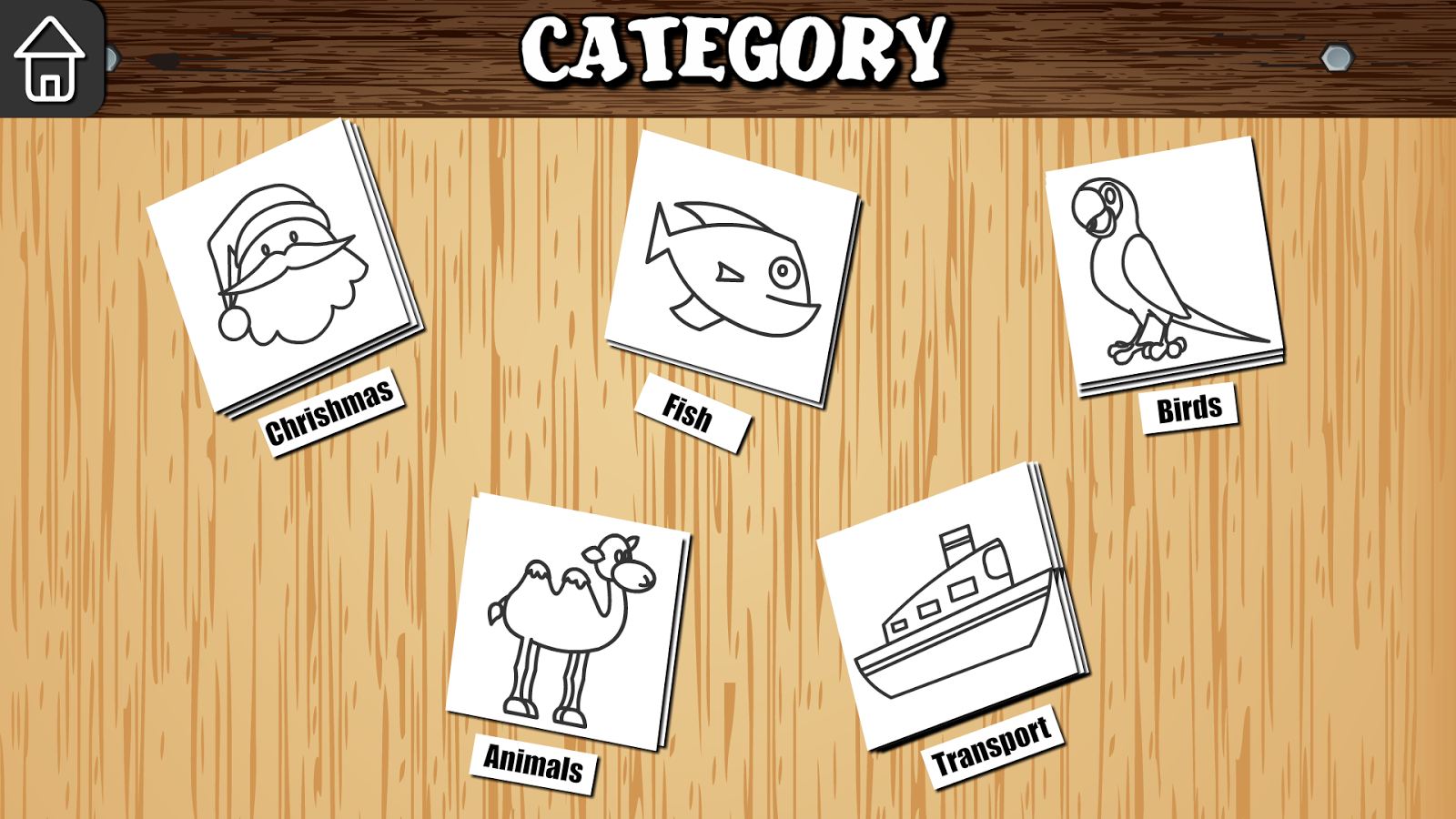 Description: Kids Easy Drawing is designed for kids,so they can learn to draw without Adult Supervision. There are Many Pictures as your kids will enjoy tracing and coloring it. This Brings out the artist hidden in your kids. Each Drawing divided in Many Steps and it easy to draw. Features: * 5 Different Categories - Christmas - Fish - Birds - Animals - Transport * Each Category are Having 5 Set of Images. * Each Image can Draw with 4 Simple Step Drawing. Future Version: * More Categories to be Added. * Save Picture option Should Given Download and Enjoy Make your kids a Young Artist. Link to Google play: https://play.google.com/store/apps/d...idseasydrawing Requirements: Android 2.3.3 and up I recommend you to download this amazing and easy drawing app. Enjoy!!  |


0 comments:
Post a Comment